Tradingview configuration

Import tools

Setting up the tools in Tradingview takes some preparation, but when it's done, it's done once and for all and everything can be reused indefinitely. You don't need to set up everything at once, just configure what you need a little at a time and it's all done. You have a limited number of alarms with Tradingview, depending of your plan, thus you'll need to manage them. 

When you purchase one of our products, we provide you with trend templates in a well-organized object tree for quick installation. You'll find them in a shared Tradingview chart, the link will be provided to you at the time of purchase. Just import them into your Tradingview and copy them wherever you like. Name templates are also supplied.
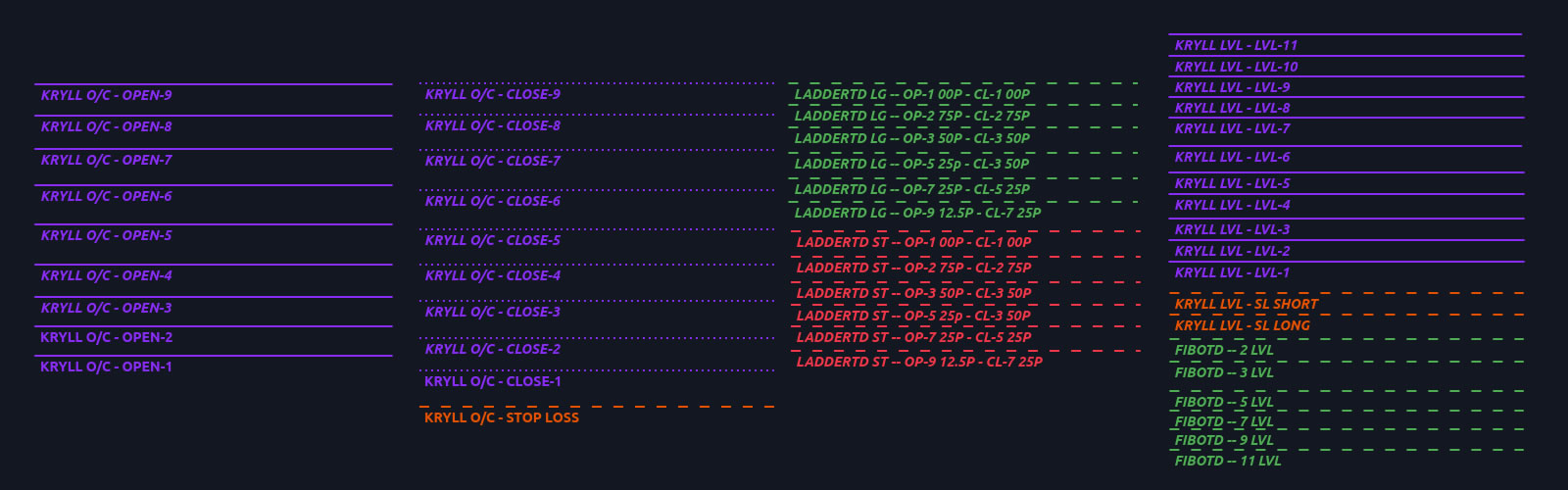
Trading TD trend templates Tradingview screenshoot

DESKTOP APP

Tradingview screenshot

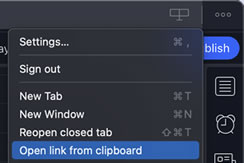
In the chart containing the template, go to Nov 22, 2023. In your desktop application, click on the 3 dots at the top left and choose open link in clipboard. It's now available in your Tradingview account in a well-organized object tree.

WEB APP

In the chart containing the template, go to Nov 22, 2023. In your desktop application, click on copy in the top left-hand corner and save the template. It is now available in your Tradingview account in a well-organized object tree.
Configure tools

You need to configure the trend templates after importing them into Tradingview, mainly by associating webhook URLs with them. You have a limited number of alarms with Tradingview based on your plan, so you need to manage them. That's why you need to use a pair-specific naming system, so you can manage them by finding them via Tradingview's alarm management tool.

WEBHOOK TO send order signals

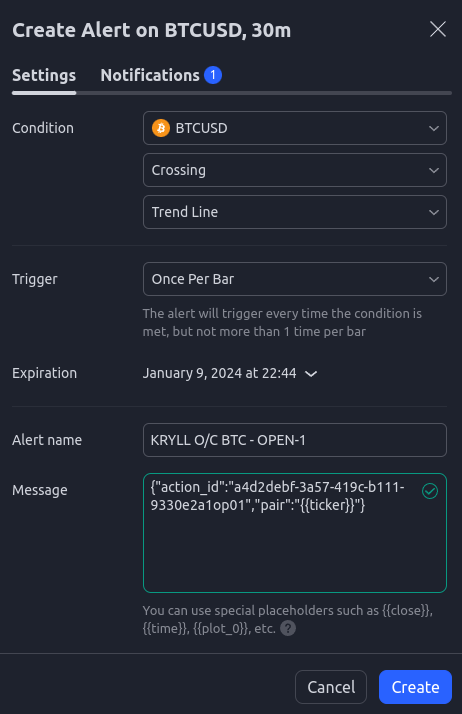
- Trigger: Once per bar to be shure the trigger occur in a fast moving market
Alert name: provided in the template, you can user your own.
- Message*: trigger a specific ID of a webhook block in a kryll strategy.
*MANDATORY

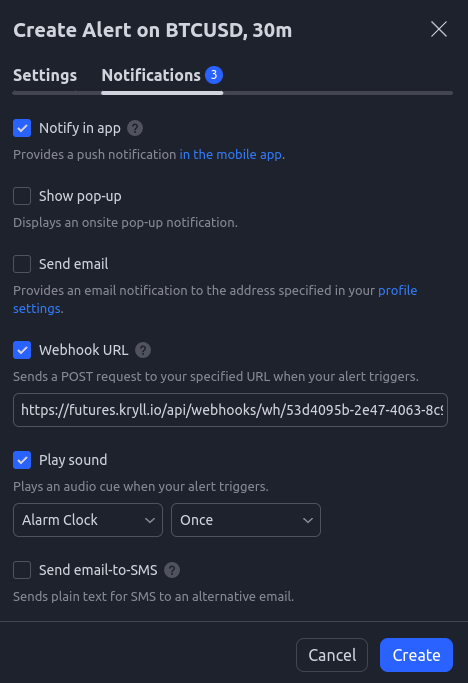
Tradingview alert configuration for webhook Kryll

- Notify in app: disable to avoid unecessary nofitication
- Webhook URL*: target a specific type of strategy
- Play sound: disable to avoid unecessary nofitication
*MANDATORY

Tradingview alert configuration for webhook Kryll

Webhook to start a kryll strategy

With this start-up system, you can pre-arrange complex positions on an unlimited number of pairs without paying any fees. You don't pay any fees until the price hits the start-up trend in Tradingview. This trend sends a signal to Kryll to start the strategy associated with that specific webhook. The same webhook can be used on an unlimited number of pairs. This webhook/strategy association must first be configured on the Kryll website, see above.

- Trigger: Only once to avoid unwanted launch of strategy
- Alert name: provided in the template, you can user your own.
- Message*: Amount allocated to the strategy, leverage, livetrading or livetest.
*MANDATORY

Tradingview alert configuration for webhook Kryll

- Notify in app: Be notified when a strategy is launched
- Webhook URL*: the specific one defined in point 2.3 of this page
- Play sound: Be notified when a strategy is launched
*MANDATORY

Tradingview alert configuration for webhook Kryll

You can also start a strategy manualy in Kryll website.