Your trends are your orders
Manage complex positions directly in tradingview

Grid tool

Presentation

A grid tool is a range that you define within which you'll switch between short/long positions. With this tool, you manage your position with levels. These levels are trends that you can freely place in any inclination in Tradingview, according to your technical analysis. You can break down your range into multiple levels, from 2 to 23. 24 Kryll strategies are provided in this product for limit or market orders. Smart stop loss to avoid violent wicks. Trend templates for Tradingview are provided for quick set-up.

With our tools, you compose and manage your positions directly in Tradingview, with trends corresponding to your technical analysis. Your trends are your orders, which you place in real time at all possible angles. Of course, you can modify your position when the strategy is in progress, which is the whole point of the tool. No more struggling with CEX or DEX forms.
This is a trading tool, not a robot, there's no automatic trading, you place the orders, you create the position based on your technical analysis.
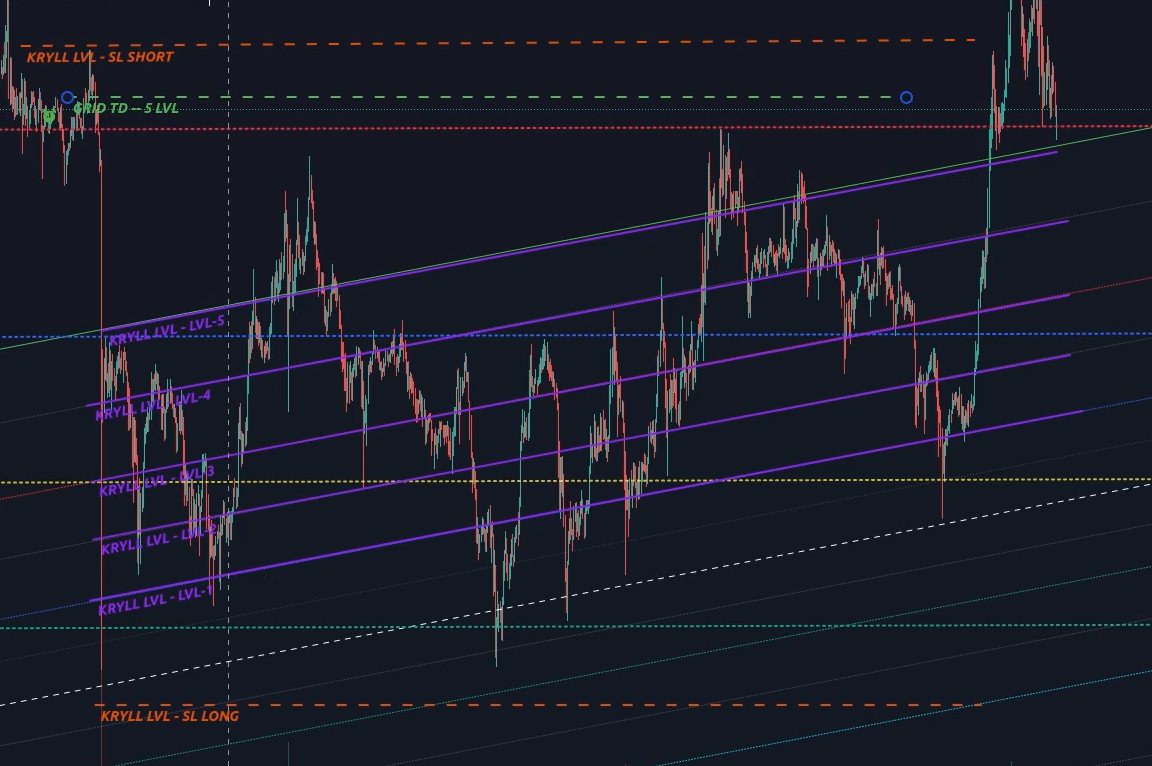
Grid TD Tradingview screenshot

Straight lines do not exist in financial markets: there's always a trend

How it works

  • You trade with levels that are trends
  • Open 100% on the first level
  • Close next level / reopen previous level
  • Close 100% on last level and shift position (long/short)
  • Last level with trailing stop
  • Smart stop loss to avoid violent wicks

Features

  • Start manually or with a Webhook
  • Choose market or limit order types (limit with market fallback)
  • Only future/perpetual market
  • Strategy starts in less than 5 sec.
  • Order executed on exchange in less than 1 sec.
  • Excel file supplied to calculate orders values

Flow

After the price hits a trend configured in Tradingview, a Webhook signal is sent to Kryll, Kryll then processes this signal with a strategy, the strategy is the product you buy, finally Kryll sends the order to a compatible exchange which executes the order.

Trading TD Tools flow

What you get when you buy

After payment, you'll receive an e-mail with a link to download the product. You'll then need to import these strategies into the Kryll website, along with other tasks involved in setting up the system.

  • a Zip file containing 12 Kryll strategies with specifics numbers of levels: 2,3,5,7,9,11,13,15,17,19,21,23.
  • Link to a Tradingview chart to import trends templates for quick and efficient set-up
  • Excel file supplied to calculate orders values

Configuration

Setting up the tools in Tradingview takes some preparation, but when it's done, it's done once and for all and everything can be reused indefinitely. You don't need to set up everything at once, just configure what you need and a little at a time and it's all done. You have a limited number of alarms with Tradingview, depending of your plan, thus you'll need to manage them. We provide you with trend templates in a shared Tradingview chart for quick and efficient set-up.

Tradingview

  • Import tools (trend templates)
  • Configure tools
  • Compose your position

Kryll

  • Import strategies
  • Connect API
  • Create starter Webhook
  • Buy krl to pay fees

Exchange

  • Create API

Each of these tasks has dedicated web pages and videos: Kryll config. - Tradingview config. - exchange config.

Start and stop a tools

You can start or stop a tools manually via the Kryll website or via webhook in tradingview.

Start the Grid tool in long or short

After starting the Grid tool, it will start long if the first level is touched first, or short if the last is touched first.

Why it's not working?

It can be for 3 reasons: at the tradingview level, at Kryll level or at the exchange level. See video below.

Buy this product